
Stay Safe, Keep Browser Add-ins Up-To-Date

In the article, Java Is The Biggest Vulnerability for US Computers at CSOOnline.com, Maria Korolov shares how the threat isn’t necessarily due to the browser add-in application itself, but that users are not keeping add-ins like Java up-to-date.  Browser add-ins like Java, Adobe Flash Player and Adobe Reader are necessary for many of the functions users want when using the internet.  These applications can make users vulnerable to cyber threats in a couple of ways.  First, if the application itself has a security flaw that criminals can use to gain access to their computer.  The second threat isn’t directly from the application itself but from fake update prompts that lead the user to malware infection.

In order to protect yourself you need to keep these and other similar applications up-to-date.  But, you should be cautious when clicking on a pop-up that claims to be an update.  The best way to avoid a fake update is by going directly to the application’s website.  Searching for the product using Google (or another search engine) can still lead you in the wrong direction if you do not read the link web address carefully.  I just did a search for “Java update” and at the top of the search were two ads: one was linked to dwnload.org where I could download Java but by doing so I would have been susceptible to allowing other programs to be installed as well, one of which was Conduit, a known malware I have had to remove for users many times.  There is a disclaimer on the page: “The download manager might recommend you to install the InternetHelper Toolbar (powered by Conduit/Bing). You can decline to install it.”  But why download it on that site and run the risk failing to decline malware.  The second choice was downloadzone.org which offered an old version of Java and an “additional software” disclaimer that was at the bottom of the page in fine print.  Find out more about  PUP’s (Potentially Unwanted Programs) in a blog post from Emsisoft called Top 10 Ways PUPs Sneak Onto Your Computer. And How To Avoid Them.

To help you avoid these kinds of scams the links below will take you to legitimate websites for these add-in products.  To save time for future updates, add them to your bookmarks/favorites list (How to: in Chrome  or Internet Explorer) or add a shortcut to your desktop.  Doing so will make updating a lot easier which will help you stay safer and up-to-date because you will be more likely to do it more often.  Remember the companies that offer these add-ins for free will often package other software or toolbars with their products in exchange for advertising revenue.  While these items are not considered malware, many users do not want them so read carefully and uncheck the box if you do not want the tool bar or other product they are offering.

Java Update link
Adobe Reader Update link
Adobe Flash Player Update link


{ 0 comments }

3 scams that can fool anybody | One Page | Komando.com

Kim Komando gives a breakdown of the various scams out there:

If you have money, valuables or even just good credit, you can bet that lots of crooks would love nothing more than to steal it right out of your hands. Thieves and scammers have been around since the beginning of time, but these days, their tools are more sophisticated than ever. The scammers literally have hundreds of ways to trick you online and offline, but there are three scams that scammers love the most.

via 3 scams that can fool anybody | One Page | Komando.com.

{ 0 comments }

24% of Facebook ads are for counterfeit goods, study finds

Think twice before buying those shiny — yet extremely cheap — Ray Ban glasses advertised on Facebook. There’s a good chance they’re fake.

At least, that’s the conclusion of a new study by two cybersecurity researchers who studied more than a thousand Facebook ads and found that almost a quarter of them are for counterfeit items such as Ray Bay sunglasses, Louis Vuitton bags, and Ralph Lauren polo shirts.

Read more… 24% of Facebook ads are for counterfeit goods, study finds.

{ 0 comments }

Steps to remove the ICE Cyber Crime Center malware

There are times when a malware infection needs extensive work to remove it. Then there are other times when the fix can be pretty easy and a user can save themselves the hassle and money of taking their computer to The Computer Monkey or another technician for removal. As of now an infection of the ICE Cyber Crime Center ransomware is one of those times. A very intimidating screen comes up trying to scare you into thinking you are suspected of some sort of cyber crime and need to pay a fine to “unlock” your computer and avoid prosecution — and it claims you only have 48 hours to do it before the prosecution begins.  Here is a detailed article from Malwaretips.com demostrating 3 different ways to remove this infection.  It is from a June 2013 post, but a friend of mine had a computer with it yesterday, so it is obviously still out there.

The ICE Cyber Crime Center removal guide from Malwaretips.com

{ 0 comments }

Important Things to Consider Before Installing an App

In the article “4 Questions to Ask Before You Give a New App Access to Your Data“, Rob Pegoraro reminds readers how easy it can be to turn over personal information about you or your friends if you are not careful.   The questions are not really tech-related, but logical questions when you consider these app developers are in business to make a profit and they make that profit from us buying and using their apps.

My rule of thumb when answering an app’s privacy-related questions is to say no and set things up as tight as possible unless I am unable to use a feature that I want to use.  At that point, you have to consider the information that must be given up, how it may be used and whether you are willing to give it up for that feature.  Just remember, you cannot “unring” a bell.  If you allow an app to have access to your contacts it will probably access them immediately and use the information before you have a chance to disallow.  It is better to start off with very tight controls that you can loosen if you choose to later.  As long as the app doesn’t force you to allow something in order to use the app, you can go into the apps privacy settings area  of the device later and loosen the control.  These settings may be in the app itself or under settings on the device.  Since we are on the topic of privacy, location services is certainly another area to be considered.  Here is an apple knowledge base article that explains how locations services works and shows how to make changes to the settings.

{ 0 comments }

Parents Need to Know: App Watch

The following is a list of apps that parents might not want their kids using.  Information links are included so they can read about them and decided for themselves.  Click on the app name below to read more information about it.  Most of these links are from Thirdparent.com.

Some of these apps are worse than others.  Just because the app is on the list doesn’t necessarily mean that kids shouldn’t use it. It could be that there are simply features that parents need to be aware of so that they can modify settings or consider if it is age- appropriate.   Ultimately, it is up to the parent but parents need to know.                                                                   

 wingman  ask.fm  tumbler  facebook  pinterest
 yikyak  twitter  truth  whisper  vine
 snapchat    instagram  reddit  flickr  google+
 kik  myspace  4chan
{ 0 comments }

Message to Windows XP users: Relax!

If you still run Windows XP, and according to this article from PC World 30 percent of you do, you might have received ominous messages about the impending death of Windows XP support on April 8th, 2014.  They may come in an email vendor or in a pop-up message from a product you are running on your computer.  The messages sound very grave and can cause undue concern for users.  One of the messages a customer received from their software vendor almost made it sound like their software would cease to function properly.

Like the above referenced article states: “When Microsoft says it’s ending support for Windows XP, that means it will no longer produce security patches for critical vulnerabilities in the operating system.”  So, basically it is a security issue.  Your machine and software will continue to function.  Your actual risk to the security vulnerabilities will depend on your specific situation — how the computer is used and the other security software it runs.  Is it used primarily for email and internet browsing, word processing and printing documents or a point of sale machine?  Is the computer even connected to the internet?  These factors should all be considered when deciding your actual level of risk and if concern is warranted.

If the computer is used for internet browsing, it would be wise to avoid using Internet Explorer, but many users have already switched to Google Chrome or Mozilla Firefox for security or performance reasons.   I often avoid security suite products (anti-virus & firewall) and instead favor a good anti-virus product coupled with the Windows firewall for performance reasons, especially on older machines.  However, I would definitely recommend a full-featured anti-virus & firewall product for computers running Windows XP  that are constantly accessing the internet.  Here is another article about securing your Windows XP computer that recommends the same.  The article also reminds users how important it is to back up your data.  As an authorized reseller of Carbonite online back up, The Computer Monkey can help you purchase and install Carbonite on your computer.

Last week we had a very thankful business customer who had a hard drive crash but because they had purchased Carbonite in January we were able to get all of their data back on their server and have them up and running again quickly.

authorized_reseller_rgb

{ 0 comments }

Slow Computer? It may be your desktop.

Slow performance certain ranks as one of the top computer user complaints of all time.  If your computer is slow here are some things to consider.

  1. Age of computer
  2. Malware/Virus infection
  3. Temporary Internet Files
  4. Too much Desktop Data

Age of computer

1.  If you have an old computer that doesn’t have any other performance related issues, it isn’t that the computer itself is slowing down but that technology may have passed it by.  You may be trying to use applications that are more powerful than your computer.  Many websites are more active and involved than they use to be which could involve using more memory and resources.

Many computers that are sold “off-the-shelf” do not come with the optimal amount of RAM (Random Access Memory).  Crucial.com has a Memory Adviser tool that can help you determine the options available for upgrading your computer’s RAM.  Upgrading your computer’s RAM is typically an easy and inexpensive way to prolong the life of your computer.

Malware/Virus infection

2.  Malware infections (viruses, adware, spyware, rootkits, browser hijackers etc.) are currently one of the most common frustrations of computer users.  Your computer can be “infected” without any obvious signs.  For serious infections you may want to contact The Computer Monkey, but minor infections can often be cleaned up pretty easily.  Here are links to some of the best products (free versions available) for removing minor malware infections:

Temporary Internet Files

3.  Temporary internet files build up as you browse the internet.  CCleaner is an easy and effective way to do basic system maintenance and take care of all of those files that build up over time.  There is a free version of CCleaner also.  The easiest way to run CCleaner is to right click your recycle bin and choose Run CCleaner after you have installed it.  Make sure you allow that choice during installation.

Desktop Data

4.  There are two schools of thought on the “desktop files” issue.  Some people insist that it doesn’t matter and then there are those of us who have seen anecdotal evidence for ourselves.  Many people, whether they mean to or not, will save files to their desktop.  Some downloads or program installations will default to the Desktop as a saving location.  The Desktop is really meant to be have shortcuts to programs and files.  While it doesn’t hurt to store a few files or small pictures on the desktop, storing large files can cause performance issues especially on computers that do not have good levels of RAM.  Move these files to the My Documents folder or the My Pictures folder instead of your desktop and you could see an improvement in performance. Save downloaded files to the Downloads folder for temporary storage and if you need to keep them, move them to the desired location.

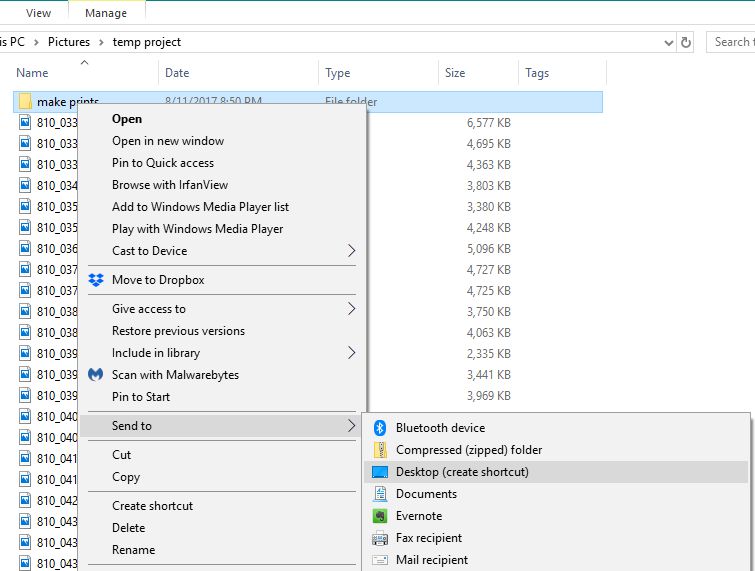
To see the size of the items on your desktop, go to File Explorer by right clicking your start button or go to the “folder” icon on the task bar. Click “Desktop” on the left. Once the items are visible you may need to click “view” at the top and change to the details view in order to be able to see the file size. Once you are in the details view, click the “size” column heading to sort by file size so it is easy to determine which are the larger files. As a general rule move anything that is more than 500 KB. Ideally, you want mostly shortcuts on your desktop. Shortcuts are designated by an arrow on the icon. So, if there is a large file you want to have access to from the desktop, you can simply create a shortcut to it by right-clicking on the file from its location in File Explorer and choosing “send to” and then “desktop”. This technique stores a link to the file on your desktop without actually keeping the file there. Using shortcuts to have easy access to your files is a great way to personalize your desktop to make it efficient and effective for your needs without adversely affecting your computer’s performance.

If these tips above do not work, The Computer Monkey can help you with your slow computer.  Contact us if the above tips do not take care of the problem or if you just do not want to do it yourself.  We can also give you advice and assistance in purchasing a new one if you decide that is the best option for you.


{ 0 comments }